
- Overview
- Latest Release Notes
- Historical Release Notes
- About ENCOO RPA Studio
- Product Introduction
- Quick Start
- Project Flow
- Version Control
- ENCOO Market
- FAQ
- ENCOO Component Library
- ENCOO RPA Robot
- ENCOO RPA Console
- Q&A
- LEGAL NOTICES
本文内容导航
Windows Remote Desktop Extension (Enterprise Edition)
Install Windows remote desktop extension to automate remote desktop.
About Native RDP Automation
The Remote Desktop Protocol (RDP) is a common method of connecting to another computer over a network. With the help of native RDP automation, selectors can be generated just like on your own computer. And you can execute these selectors on other computers from the network without the need for installing RPA. Thus you can take advantage of a full range of "UI Automation" activities and benefit from them.
Installation and Configuration Steps
To get the support of native RDP automation, you need to perform the following steps. After you complete these steps, you can use the Studio on the client to create a flow with the help of "UI Automation" activities and the wizard.
Set up the Client
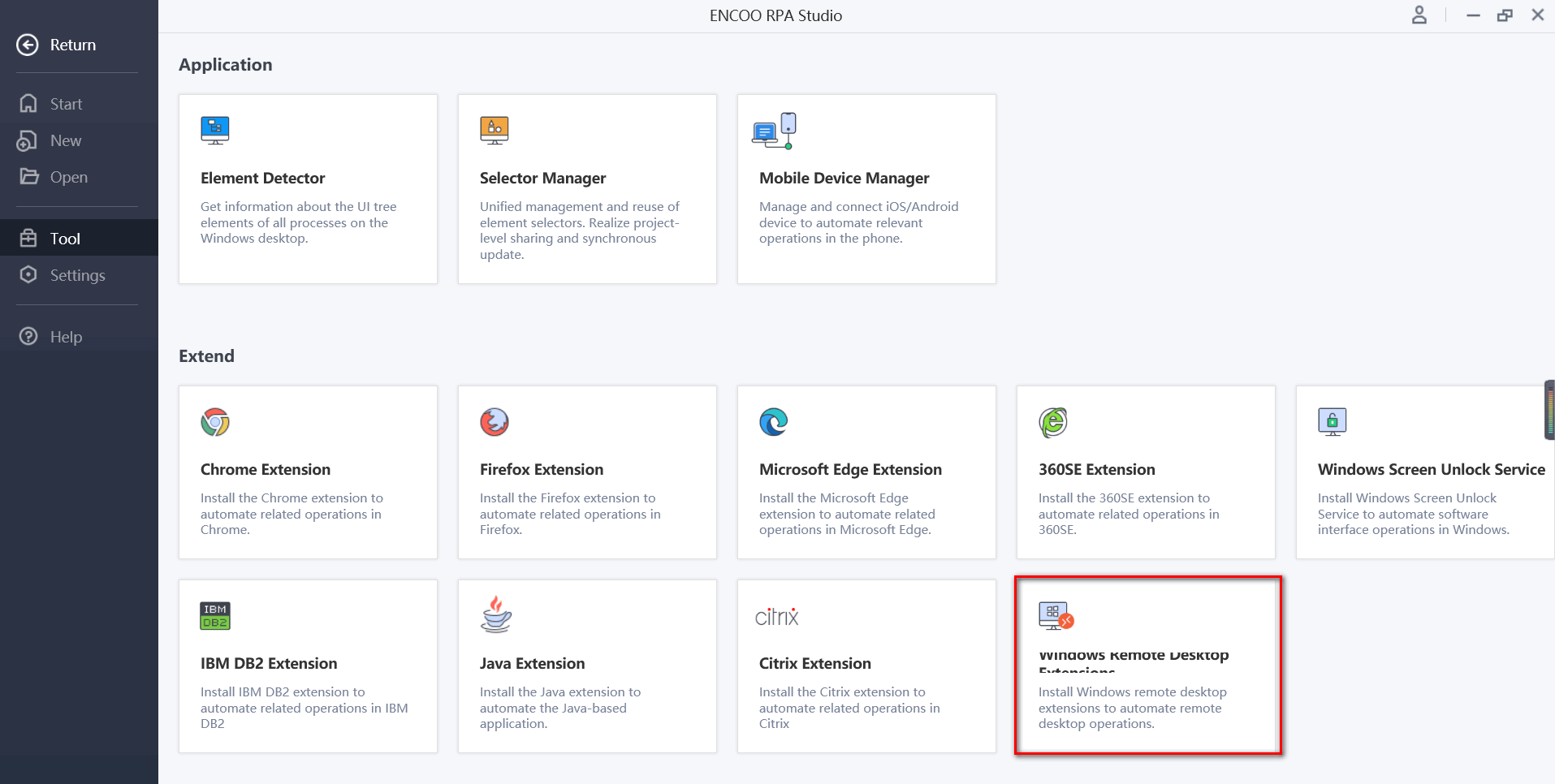
In the Studio, access the Start > Tools > Extension tab and locate Windows Remote Desktop Extension.
Click the Windows Remote Desktop Extension icon to install ENCOO Windows Remote Desktop Extension. Follow the wizard to complete the installation.
Set up the Remote Desktop Computer
Encoo Remote Runtime is an activity that runs on the RDP remote computer. This activity enables RDP remote desktops or remote applications to communicate with RDP local extensions and therefore allows local generation and automated execution of selectors.
Choose Home > Installation Package Download on the console to get the Encoo Remote Runtime installation package for the remote server.
Install the Encoo Remote Runtime installation package on the RDP application server that needs to be automated.
(Optional) When you need to automate a browser or Java application on a remote machine, you need to install the corresponding extension on the server to get better automation support.
Web extension installation
a. Locate the Web extension installer (Encoo.Web.ExtensionInstall.exe) under the Remote Runtime installation directory. The path is "C:\Program Files (x86)\EncooRemoteRuntime\app-XXXXXX\packages\XXXXXX\Extensions\Web\Encoo.Web.ExtensionInstall.exe". b. Open the command line window and execute the command
cd C:\Program Files (x86)\EncooRemoteRuntime\app-XXXXXX\packages\XXXXXX\Extensions\Web\to change the current directory to the directory where the installer is located. c. Depending on the browser extension to be installed, execute the following command to perform the installation:Chrome browser
Encoo.Web.ExtensionInstall.exe -install -t Chrome -l zh-CNFireFox browser
Encoo.Web.ExtensionInstall.exe -install -t FireFox -l zh-CNWeb 360 Browser
Encoo.Web.ExtensionInstall.exe -install -t Web360 -l zh-CNMicrosoft Edge
Encoo.Web.ExtensionInstall.exe -install -t Edge -l zh-CN
Java extension installation. a. Locate the Java extension installer (EncooJavaExtensionInstaller.exe) under the Remote Runtime installation directory. The path is "C:\Program Files (x86)\EncooRemoteRuntime\app-XXXXXX\packages\XXXXXX\Extensions\Java\EncooJavaExtensionInstaller.exe". b. Open the command line window as Administrator and execute the command
cd C:\Program Files (x86)\EncooRemoteRuntime\app-XXXXXX\packages\XXXXXX\Extensions\Java\to change the current directory to the directory where the installer is located. c. Execute the following command to perform the installation:EncooJavaExtensionInstaller.exe -install -a
After the installation is complete, you can perform operations on the remote desktop computer.
Uninstall RDP
To uninstall the local Windows Remote Desktop Extension, locate and delete the registry value of HKEY_CURRENT_USER\Software\Microsoft\Terminal Server Client\Default\AddIns\EncooRemotePluginRdp on the local computer, and then restart the connection.
FAQ
Q: Can I remotely access another computer from a remote desktop?
A: Not supported.
