
- Overview
- Latest Release Notes
- Historical Release Notes
- About ENCOO RPA Studio
- Product Introduction
- Quick Start
- Project Flow
- Version Control
- ENCOO Market
- FAQ
- ENCOO Component Library
- ENCOO RPA Robot
- ENCOO RPA Console
- Q&A
- LEGAL NOTICES
本文内容导航
360SE Extension
In the studio, you can automate the 360SE by installing the 360SE extension.
Note:
- The minimum 360SE (speed mode) version is 10.
- Before installing the extension, you may be asked to close 360SE, so please make sure that the relevant jobs in processing are saved.
Install
Under Tools > Extension in the studio, you can see the 360SE extension you need to install.
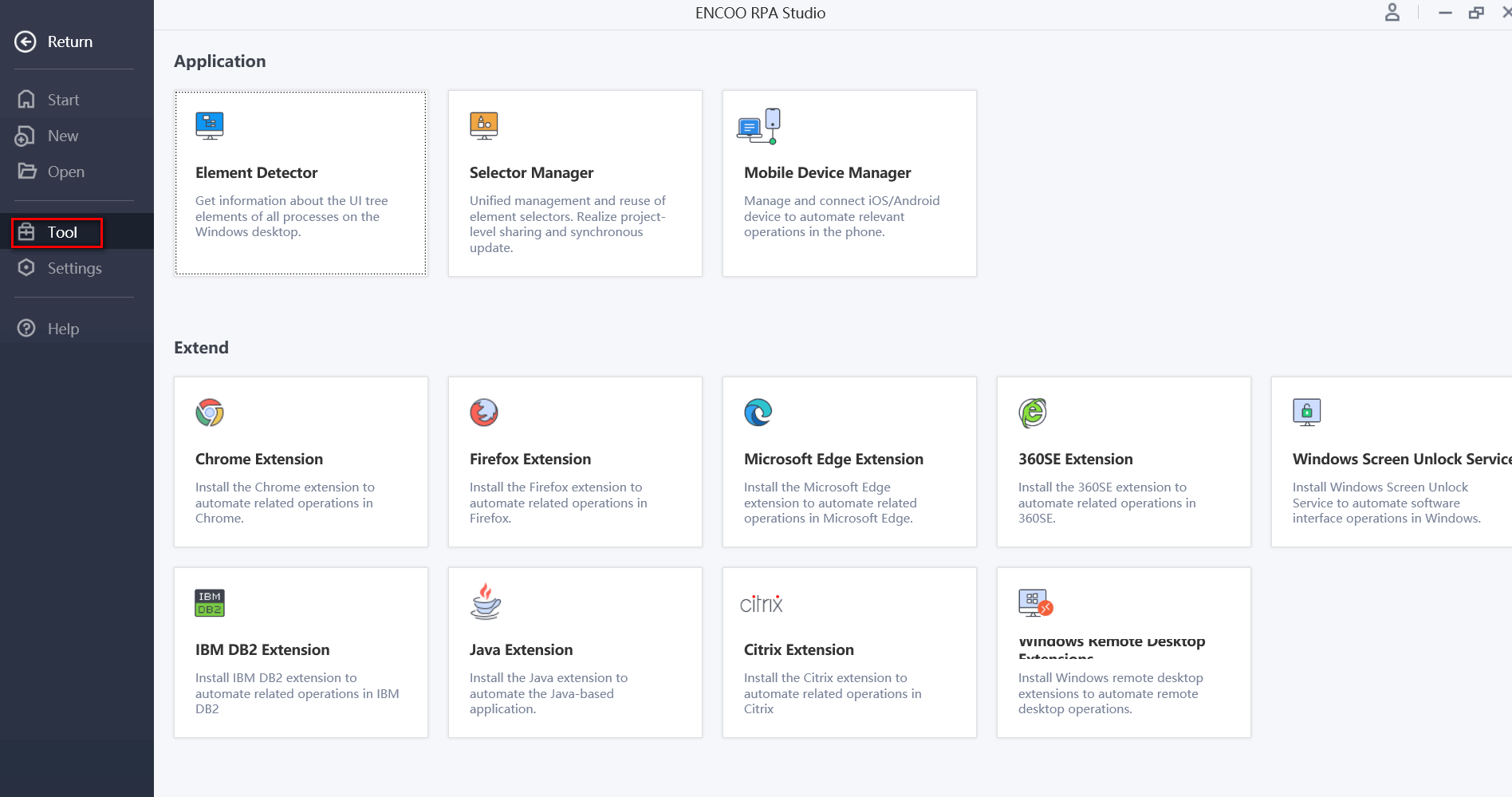
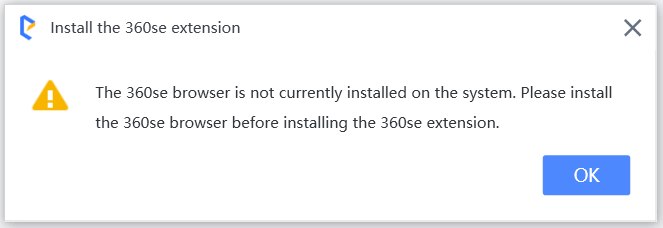
Click "360SE Extension", and click "OK" in the pop-up dialog box.
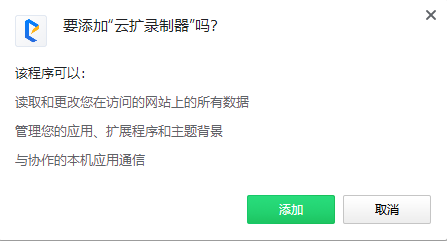
360SE will be opened automatically and a dialog box will pop up as shown below. Click "Add".
The icon below means that the installation is completed.

Manually Add
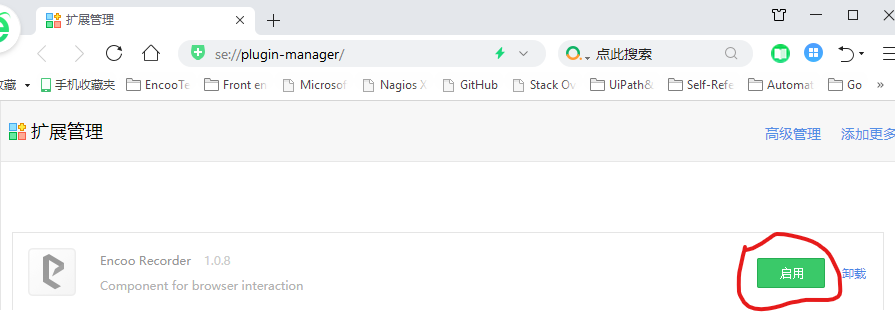
If 360SE is not opened automatically or the dialog box of "Add ENCOO Recorder" does not appear, you need to add the 360SE extension manually.
- Manually open 360SE and type in the address bar
- Find ENCOO Recorder extension, and click Enable.
Adjust Settings
Since the initial setup of 360SE is complicated and there are too many pop-up ads and prompt windows, which may affect the function of web automation, you need to check and adjust the relevant configuration after installing 360SE. Please refer to the following steps.
Click the Open Menu button in the upper right corner, and then click the Settings button. Then you will enter the settings screen of 360SE.
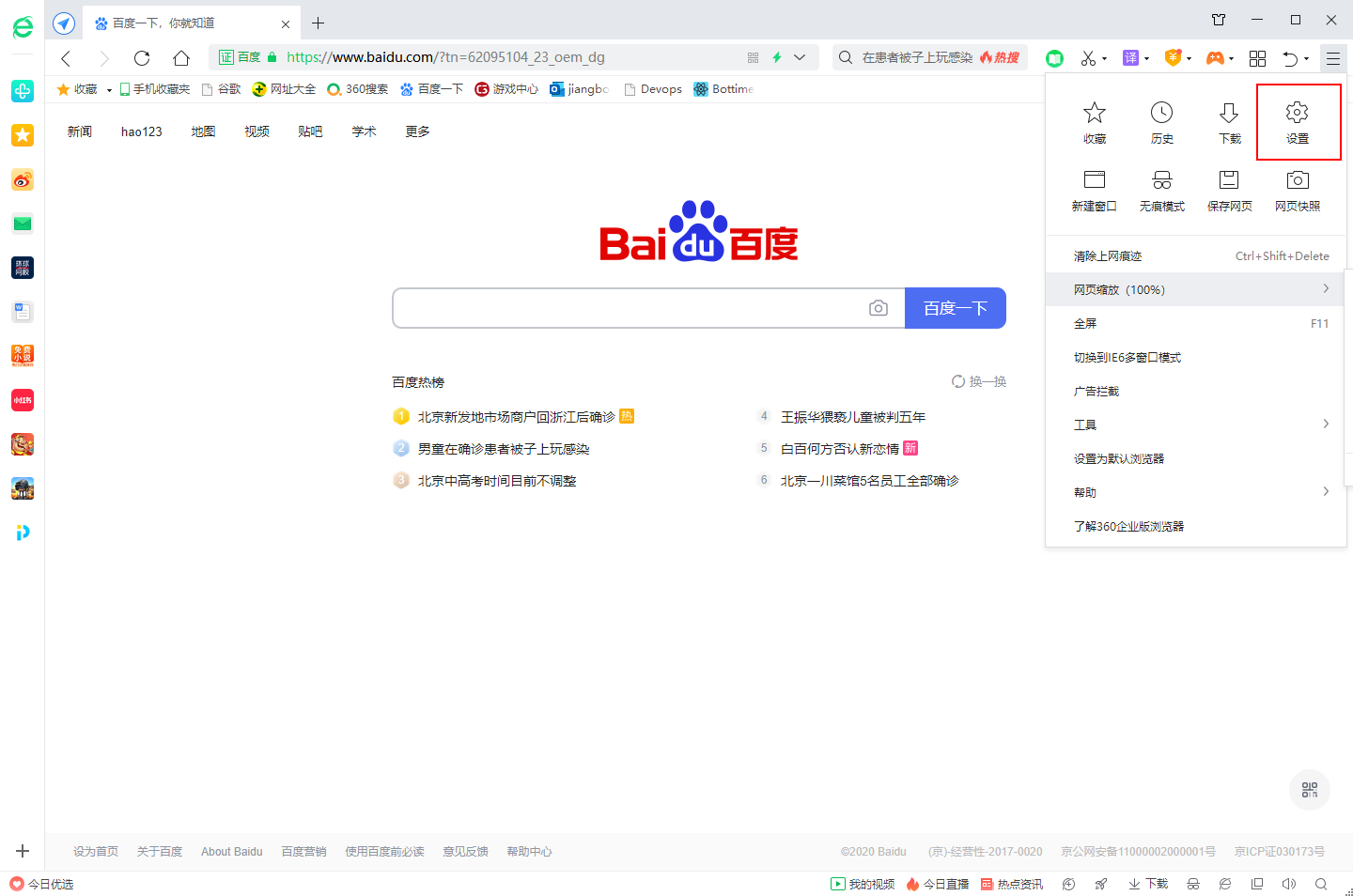
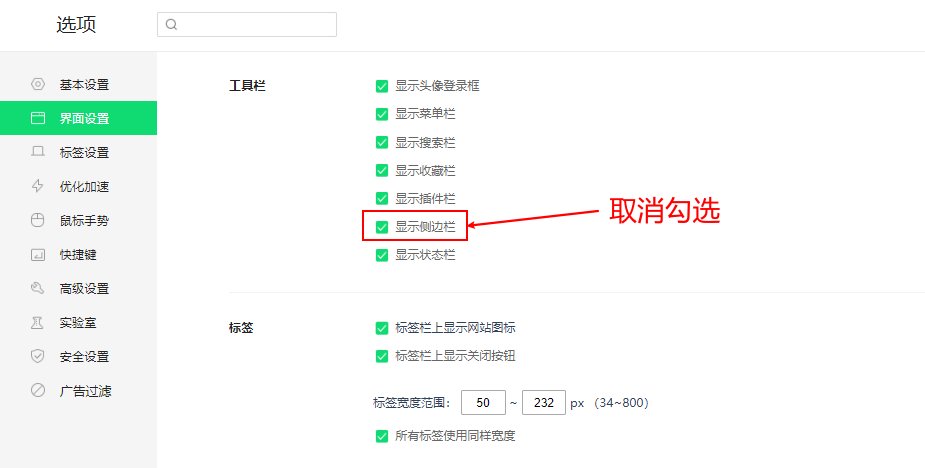
Follow the instructions on the settings screen as shown in the image below.

Uncheck the "Show Sidebar" option, as shown below.
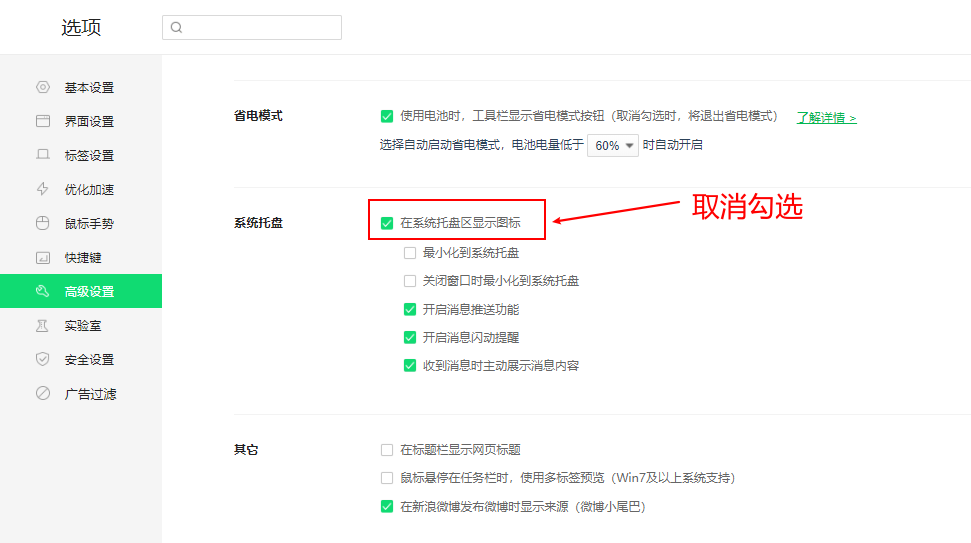
Uncheck "Show Icon in System Tray", as shown below.
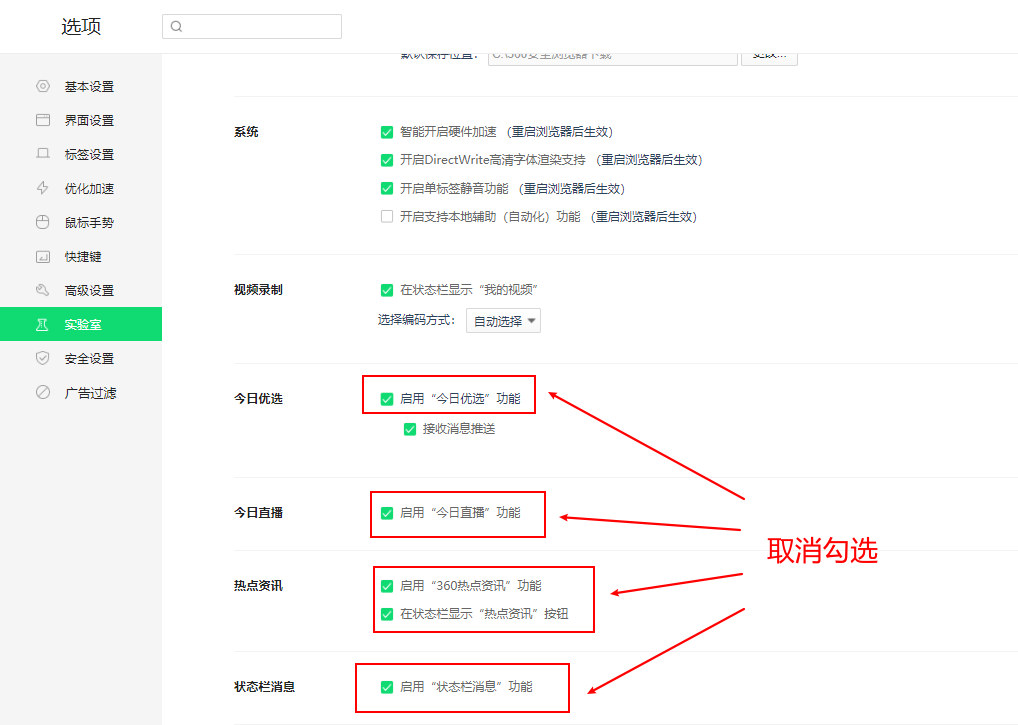
Uncheck the relevant advertising information, as shown below.
Description:
360SE has many pop-up ads. Please pay attention to the relevant cases when executing the project.
