- Overview
- Latest Release Notes
- Historical Release Notes
- About ENCOO RPA Studio
- Product Introduction
- Quick Start
- Project Flow
- Version Control
- ENCOO Market
- FAQ
- ENCOO Component Library
- ENCOO RPA Robot
- ENCOO RPA Console
- Q&A
- LEGAL NOTICES
本文内容导航
Windows Screen Unlock Service
Case Introduction
To trigger the process automation of some RPA robots, you need to schedule cron jobs to execute business flows at different frequencies at the same time every day. If the computer screen is locked when the robot starts a process, a flow execution error is reported.
To resolve such issues, we provide a function that prevents screen lock to ensure operations of the RPA robot.
Case Resolution
Before the studio or robot runs the Lock Screen or Unlock activity, you shall install Windows Screen Unlock Service as Administrator to automate the software interface in Windows.
Install Windows Screen Unlock Service
a. Run Studio or Robot application as administrator. b. Click Windows Screen Unlock Service to start the installation.
Description:
- Entry for Windows Screen Unlock Service in the Studio: Start Homepage > Tools.
- Entry for Windows Screen Unlock Service in the Robot: Settings > Extension.
Lock screen Drag the Lock Screen activity to the position where screen lock is required in the flow. Then set the activity properties to replace the manual operation of pressing "Win+L" key and keep the flow running when the screen is locked.
Unlock screen Drag the Unlock Screen activity to the position where screen unlock is required in the flow. Then set the activity properties to replace the manual operation of entering the username and password to unlock the computer screen automatically.
FAQ
Which operating systems can support Windows Screen Unlock Service? The compatible operating systems include Windows 7, Windows 10, Windows Server 2008, Windows Server 2016, and Windows Server 2019.
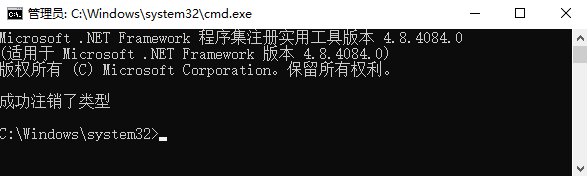
How to uninstall Windows Screen Unlock Service? Step 1: Entry for uninstaller: Uninstaller. Step 2: Right click to run as administrator, and the successful uninstallation is as shown below.
In Windows 10, the Username attribute in the Unlock Screen activity is invalid when I log in using an online email account. Enter the Username attribute in the Unlock Screen activity with the name of the folder that is created with the name of the online email account under the "C:\Users" directory.
The Username attribute in the Unlock Screen activity is invalid when I log in as a domain user. Enter the Username attribute in the Unlock Screen activity with {domain name\user name}, for example, EncooFrank\Administrator.
After the screen is locked in the Enterprise or Server Edition of the operating system, the "Press Ctrl+Alt+Delete to unlock" message is displayed on the screen. Does the message indicate that automatic screen unlock is not supported? To enable the support of automatic screen unlock, you need to choose Control Panel > System and Security > Administrative Tools > Local Policy, locate the item "Interactive logon: Do not require Ctrl+Alt+Del" and select the Enabled check box.
