- Overview
- Latest Release Notes
- Historical Release Notes
- About ENCOO RPA Studio
- Product Introduction
- Quick Start
- Project Flow
- Version Control
- ENCOO Market
- FAQ
- ENCOO Component Library
- ENCOO RPA Robot
- ENCOO RPA Console
- Q&A
- LEGAL NOTICES
本文内容导航
Citrix Extension (Enterprise Edition)
About Automating Citrix Technologies
Citrix broadly refers to both Citrix Desktop and Citrix App virtualized resource delivery methods.
ENCOO RPA has supported Citrix to increase automation capabilities. Users simply install Encoo Citrix Extension on the local client and Encoo Remote Runtime on the remote server (Citrix Desktop or Citrix Apps) and then operate the interface elements in Citrix remote server as if they are on the local client (e.g. "Click", "Enter Text", "Get Text", and other interface automation operations), so that you can get the same interface automation on Citrix Desktop or Citrix App as you would on a native client, without the use of automation technologies such as image recognition.
The following functions are supported: With the Encoo Citrix extension and Encoo Remote Runtime installed, the following actions are enabled:
- Generating selectors for UI elements in Citrix Apps and Desktops.
- Using the interface automation activities.
- Automating browsers opened with Citrix Apps.
Installation and Configuration Steps
Prerequisites
Install Citrix client (e.g. Citrix Receiver or Citrix Workspace) on the local computer.
Configure Local Client
Citrix extension is installed on the local computer to allow Encoo Studio/Robot to automate Citrix-related applications with native method.
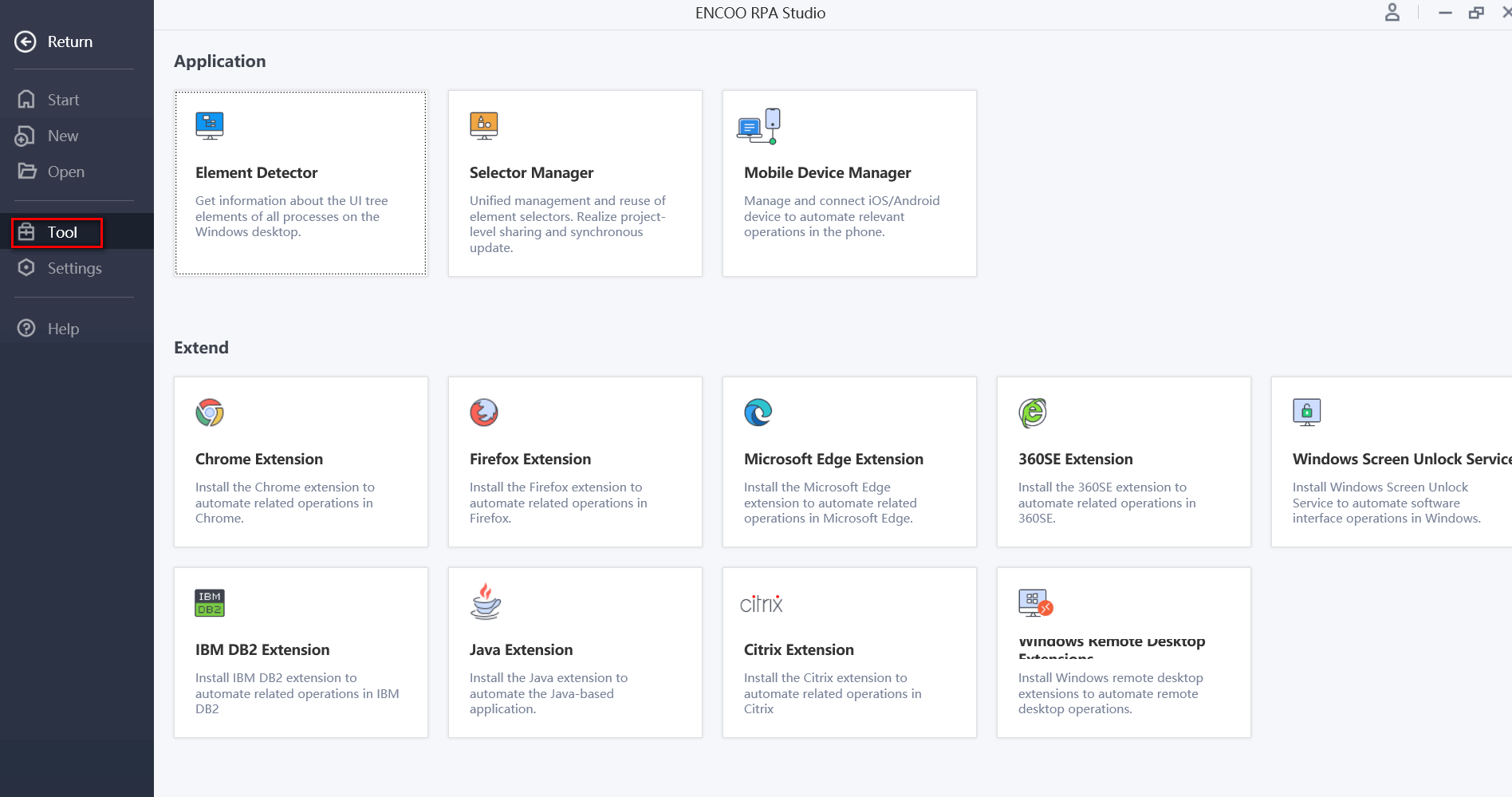
- In the "Start > Tools" page of the studio, get the local Encoo Citrix extension.
- Click Citrix Extension and follow the installation wizard to install.
Configure Remote Server
Encoo Remote Runtime is an activity that runs on Citrix Server and enables Citrix remote desktops or remote applications to communicate with Citrix local extension so that they can generate selectors and perform automation actions locally.
Choose Home > Installation Package Download on the console to get the Encoo Remote Runtime installation package for the remote server.
Install the Encoo Remote Runtime installation package on the Citrix application server that needs to be automated.
(Optional) When you need to automate a browser or Java application on a remote machine, you need to install the corresponding extension on the server to get better automation support.
Web extension installation
a. Locate the Web extension installer (Encoo.Web.ExtensionInstall.exe) under the RemoteRuntime installation directory. The path is "C:\Program Files (x86)\EncooRemoteRuntime\app-XXXXXX\packages\XXXXXX\Extensions\Web\Encoo.Web.ExtensionInstall.exe". b. Open the command line window and execute the command
cd C:\Program Files (x86)\EncooRemoteRuntime\app-XXXXXX\packages\XXXXXX\Extensions\Web\to change the current directory to the directory where the installer is located. c. Depending on the browser extension to be installed, execute the following command to perform the installation:Chrome browser
Encoo.Web.ExtensionInstall.exe -install -t Chrome -l zh-CNFireFox browser
Encoo.Web.ExtensionInstall.exe -install -t FireFox -l zh-CNWeb 360 Browser
Encoo.Web.ExtensionInstall.exe -install -t Web360 -l zh-CNMicrosoft Edge
Encoo.Web.ExtensionInstall.exe -install -t Edge -l zh-CN
Java extension installation. a. Locate the Java extension installer (EncooJavaExtensionInstaller.exe) under the RemoteRuntime installation directory. The path is "C:\Program Files (x86)\EncooRemoteRuntime\app-XXXXXX\packages\XXXXXX\Extensions\Java\EncooJavaExtensionInstaller.exe". b. Open the command line window as Administrator and execute the command
cd C:\Program Files (x86)\EncooRemoteRuntime\app-XXXXXX\packages\XXXXXX\Extensions\Java\to change the current directory to the directory where the installer is located. c. Execute the following command to perform the installation:EncooJavaExtensionInstaller.exe -install -a
Restart Citrix Session of the Activity
After installing Encoo Remote Runtime and Encoo Citrix extensions, a restart of the Citrix activity session is required for the changes to take effect.
Right click the Citrix Receiver tray icon, and then click "Connection Center".
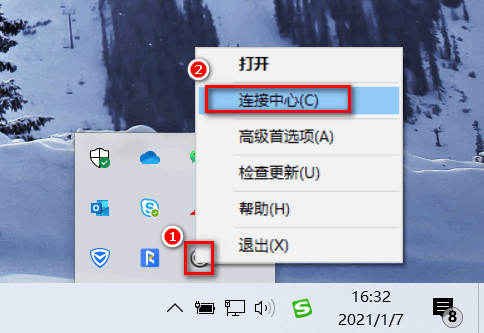
In the "Citrix Connection Center" window that pops up, select the activity session and click the "Logoff" button.
Description:
This action needs to be performed for all activity sessions.
Click the "Close" button to confirm all changes and close the window.
Uninstall Citrix
Uninstall Encoo Citrix Extension on Local Client. On the local computer, manually delete the
EncooRemotePluginCitrix.dllfile under the pathC:\Program Files (x86)\Citrix\ICA Client\.Uninstall Encoo Remote Runtime Program on Remote Server. Just uninstall the
Encoo Remote Runtime ExtensionProgram in the Control Panel as you would normally uninstall the program.
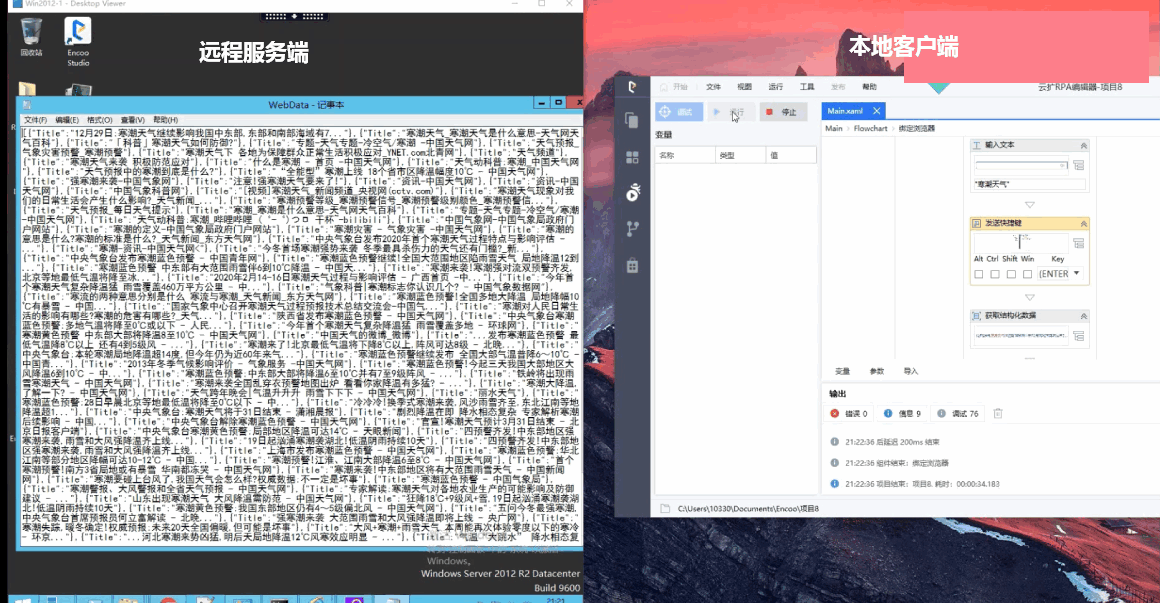
Example of Citrix Operation
To demonstrate how automating Citrix technologies works, we create a simple automation flow that is used to grab web data from a browser, save it to notepad and modify the font.
Build a flow in the local client's studio to obtain structured data from the remote server's web page and save it to the remote server's notepad and modify the font style.
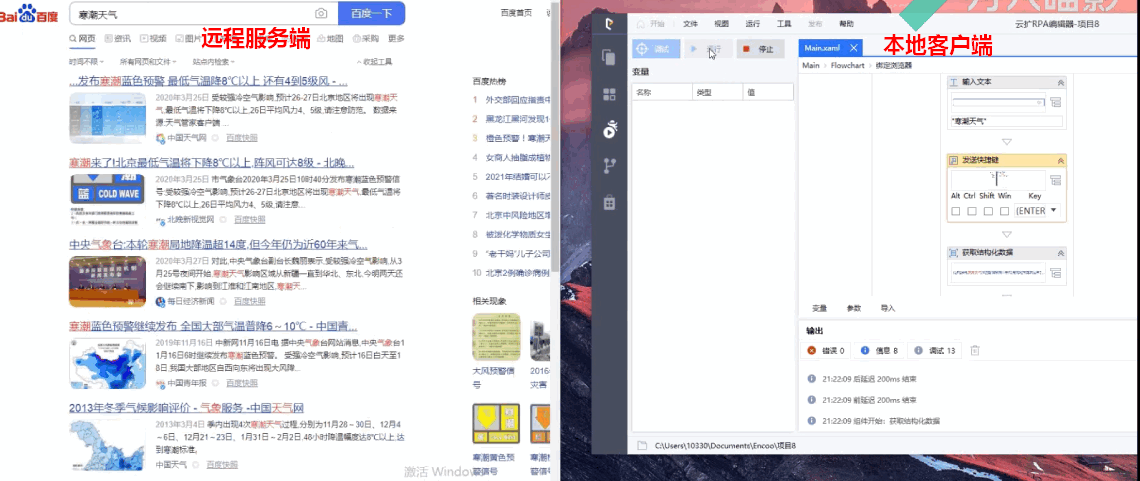
Save and run the flow and view the running results.
FAQ
- Q: Why can't I perform Citrix automation after installing the Encoo Remote Runtime Program? A:
Encoo Remote Runtime Program needs to correspond to the version of the automation activity used by the local client, otherwise it will not work properly.
Description:
- The version of the automation activity used by the local client is viewed in the Dependencies under the project panel.
- The version of the Encoo Remote Runtime Program used by the remote server can be viewed when downloading the installation package.
If the studio or robot is upgraded, the Encoo Remote Runtime Program must also be upgraded to the corresponding version, otherwise it will not work properly.
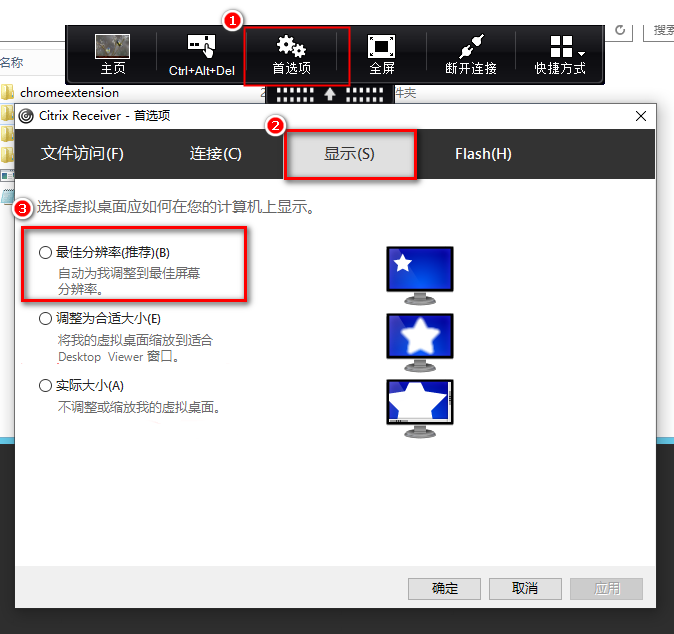
- Q: Why is the positioning of a Web element offset when specifying an element after setting the "Preferences > Display" of Citrix, but the desktop element remains highlighted in its original position after the window is scrolled for validation? A: Currently, Encoo Remote Runtime only supports working at "Best Resolution", so if you encounter this situation, set "Best Resolution" in "Preferences > Display" of Citrix.