查找
English
- Overview
- Latest Release Notes
- Historical Release Notes
- ENCOO RPA Studio
- About ENCOO component library
- Interface automation
- Software automation
- Code tool
- Check
- Database
- Data Sheet
- Process Control
- AI Hub
- Mobile Phone Automation
- Console
- Resources
- Trigger
- Appendix
- ENCOO RPA Robot
- ENCOO RPA Console
- Q&A
- LEGAL NOTICES
本文内容导航
Write to Log
It controls the content of the log output. The logs after this activity will be output according to the selected level. The default log output level of the studio is Info. After setting this activity “log level” and property Debug, you can view more detailed log information
Property
Basic
- Display Name: It is the name of this activity by default. As change is supported, the user can define the display name of this activity.
- Proceed After Failure: Set whether to ignore this error and proceed to the next activity when the execution of this activity failed. Select from the dropdown. When "Yes" is selected, if there is an error during the execution of the activity, the flow will proceed to the next activity and not stop; when "No" is selected, if there is an error during the execution of the activity, the flow will stop and throw an error.
- Pre-delay (ms): Specify the time to wait before this activity is executed. The unit is ms, 1000 ms = 1 s. If 1000 is entered here, it means that after the previous activity is executed, this activity will be executed after waiting for one second.
- Post-delay (ms): Specify the delay time after this activity is executed. The unit is ms, 1000 ms = 1 s. If 1000 is entered here, it means that after this activity is executed, the next activity will be executed after waiting for one second.
Log
- Log level: There are three options: Debug, Info, Error. After selecting Debug, you can view the most detailed log information; after selecting Info, you can view the log information of Info and Error level; after selecting Error, only Error log will be output
- Log content: The content written to the log. Only string variables and strings are supported
Operation sample
Drag a Write to Log activity into the flow.
Double-click the Write to Log activity in the margin to configure the property parameters.

- Log level: Drop down to select the log level, such as Info
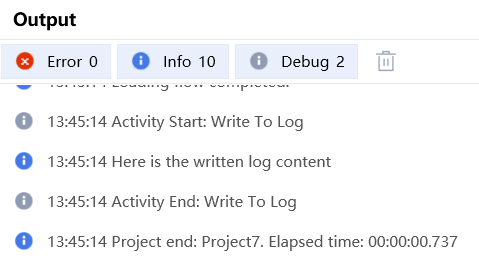
- Log content: Enter the log content, such as "Here is the written log content"
Save and execute the flow.
View the execution results in the output panel, as shown in the figure below.

Copyright © 2020 上海云扩信息科技有限公司